Did you know Canva can store your brand colours, fonts and logos?
Including your fonts, colours, logos and templates, across your entire organisation.
Canva’s Brand Kit feature means you can keep everything consistent
No more mismatched colours or stretched logos.
If you are using a paid Canva account, you can currently create up to 100 different brand kits.
If you are using the free version, you can’t save a full Brand Kit in Free, but you can use some workarounds.
To set up a brand kit using a paid account:
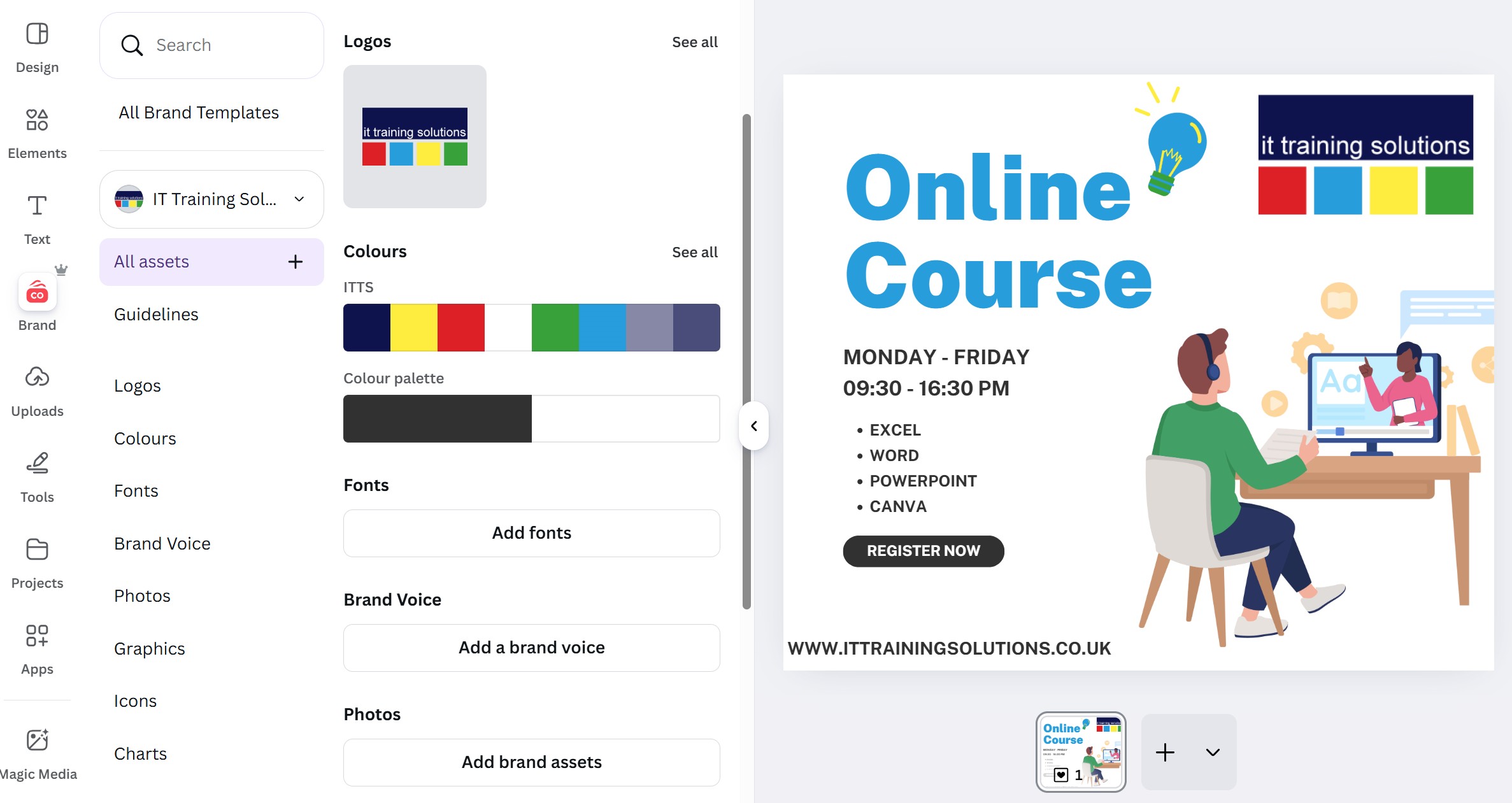
In Canva, click on Brand in the navigation panel down the left-hand side.
For example: Use the colour picker, manually add up to three brand hex codes (e.g. #2f66a9), and copy colours from existing designs.
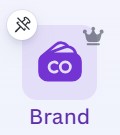
Click on the drop-down next to the current brand kit (if there is one).

Choose Create New Brand Kit.

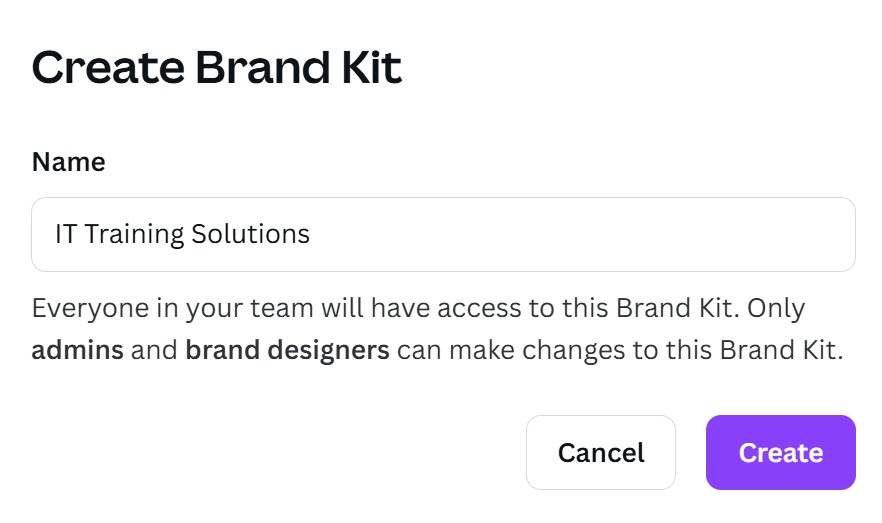
Type a name for your brand kit, then click on Create.
At this point you can input the address of your company website or upload your brand guidelines (if you have a guidelines document) and Canva will extract the information (e.g. brand colours, logos etc) that it needs.

You can now click on each asset (e.g. logo, font etc) and upload any information you have.
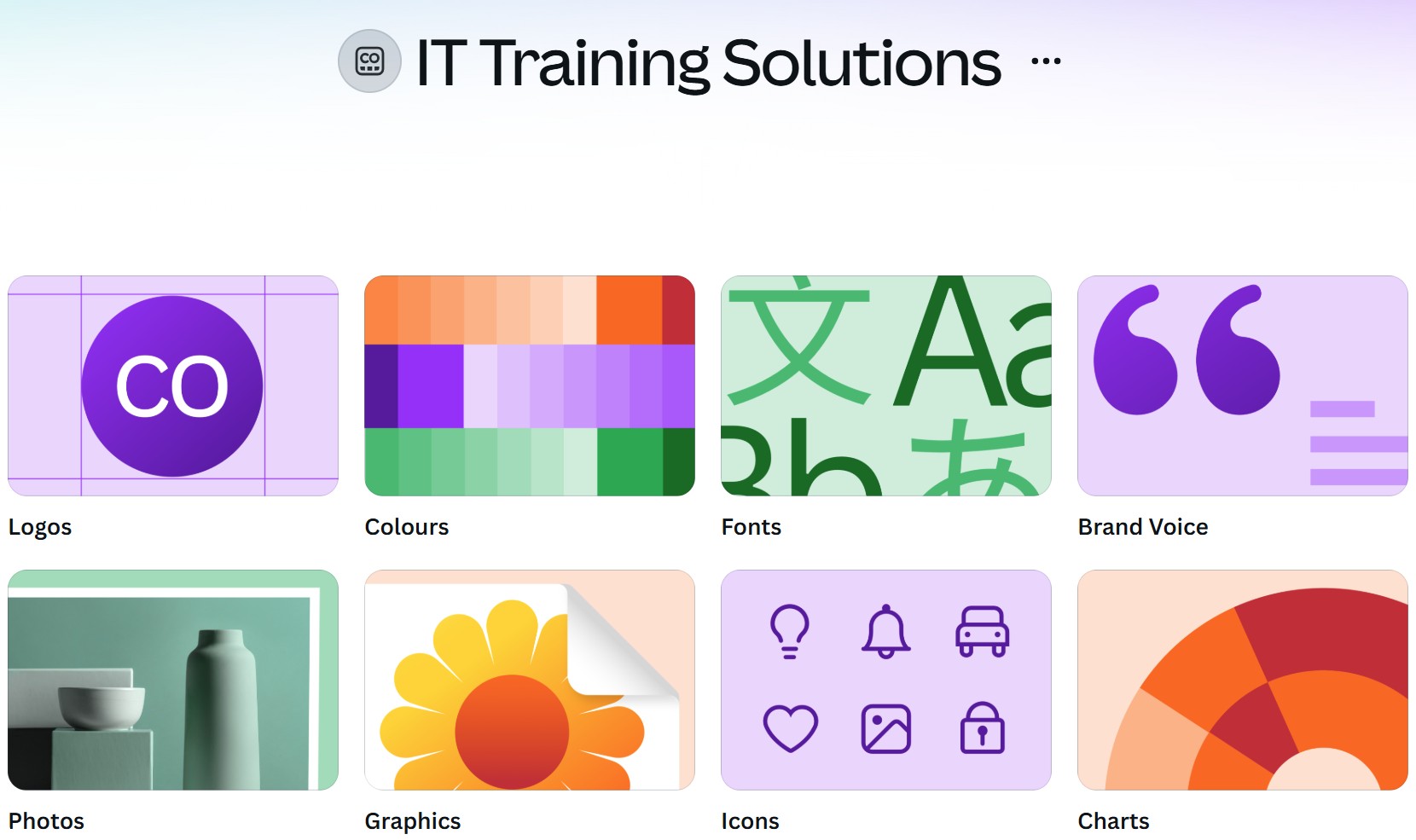
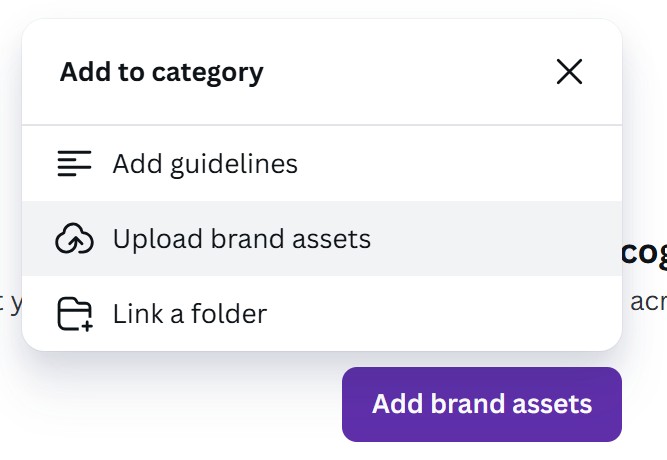
For example, click on Logo, then Add Brand Assets.

Click Upload Brand Assets.
Navigate to your company logo, then click Open.
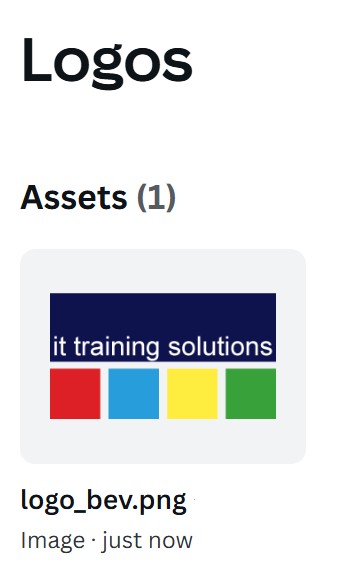
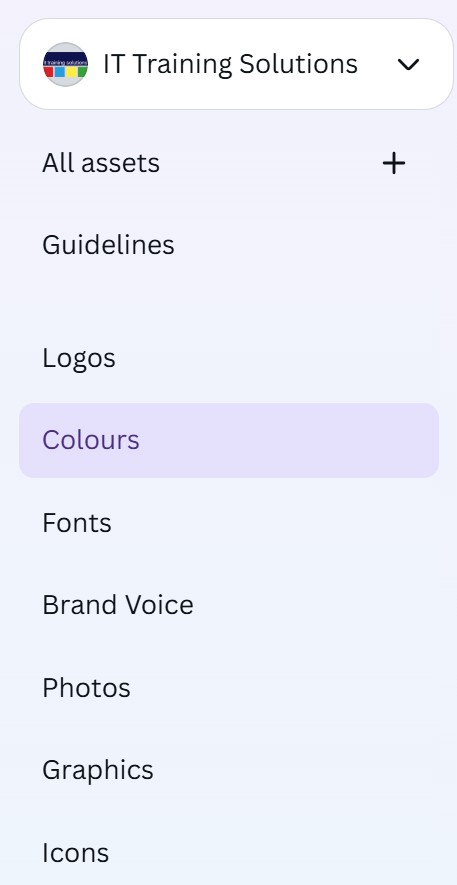
Once a logo is uploaded, Canva will automatically extract the colour palette. Click on Colours down the left-hand side of the screen.
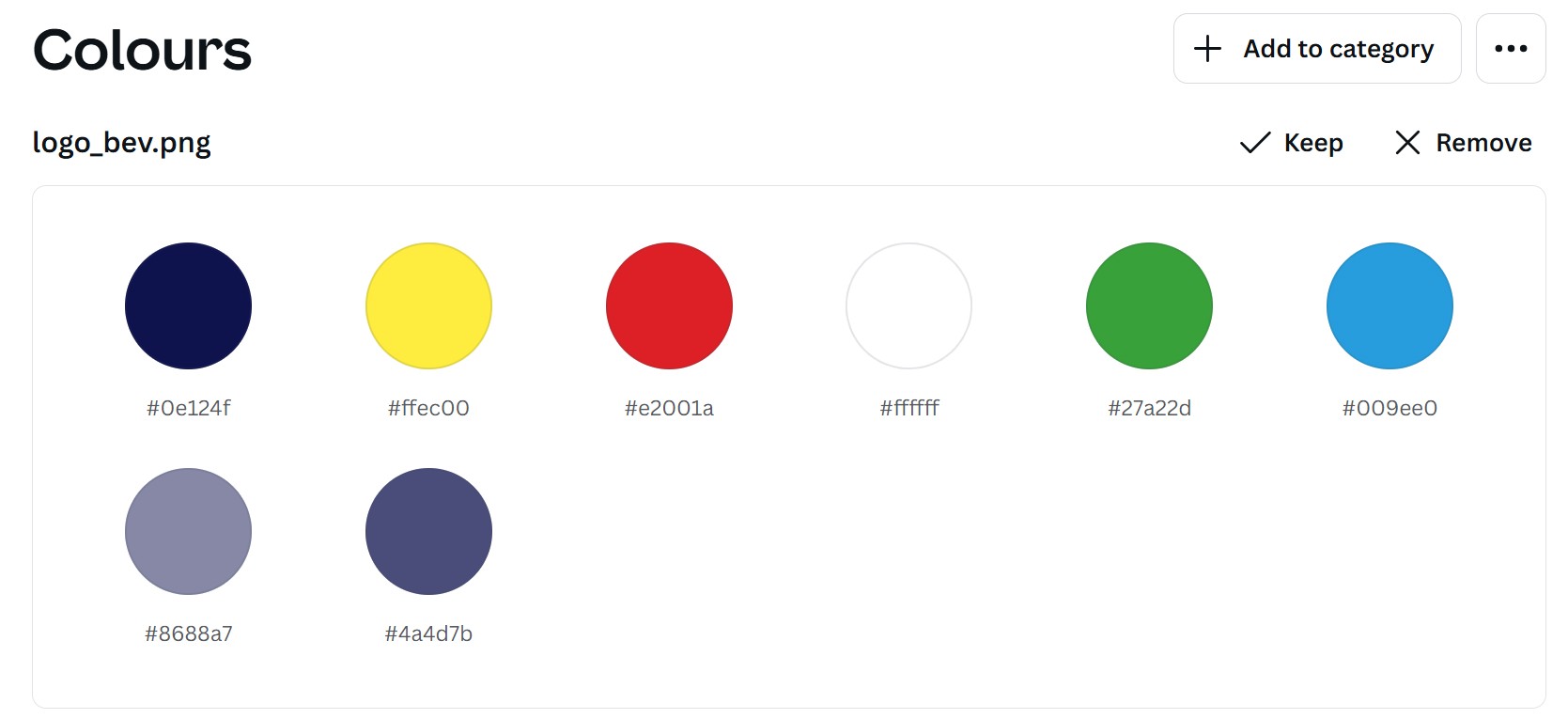
The colour palette has been extracted from the logo. If you are happy with the suggested palette, click on Keep. If you want to start from scratch to create a colour palette, click on Remove.
Once you click Keep, if you want to edit any of the colours, simply click on the colour to edit. Then either type in a new hex value or use the slider to select a new colour.
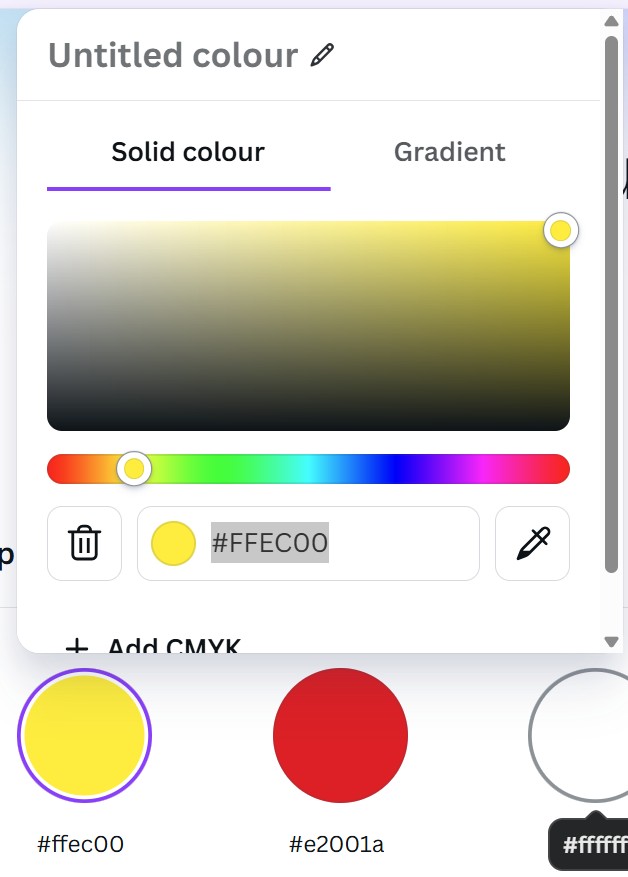
To rename the palette, click on the edit (pencil) icon next to the name.

Type in a new name, then click away.

Now that you have added your logo and colour scheme to your brand kit, whenever you are creating a design in Canva, simply click on Brand in the navigation panel down the left. Click on your logo to add it to your design, then click shuffle to apply your company colour palette to that design.
Published By: IT Training Solutions Ltd