Instantly Reveal All Formulas in Excel
When working with Excel, formulas are often more important than the numbers they produce. But by default, Excel hides formulas behind results, making it harder to audit, troubleshoot, or explain how a spreadsheet works.
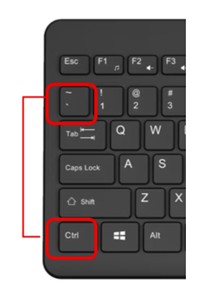
Pressing Ctrl + ` toggles the worksheet between:
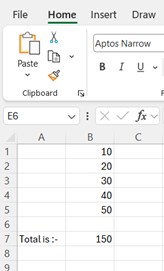
Normal view – showing calculated results
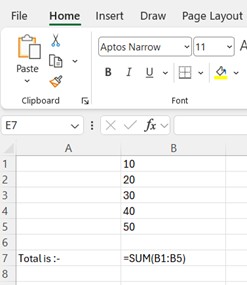
Formula view – showing every formula in every cell
Instead of clicking through cells one by one, Excel displays all formulas at once, laid out across the sheet.
Press Ctrl + ` again to switch back.
Normal view – showing calculated results
Formula view – showing every formula in every cell
What Happens with this short cut
When you press Ctrl + `, Excel will . . . .
Widens columns automatically to fit formula width as displayed
Displays formulas instead of results
Disables the ability to edit multiple cells at once. This is intentional - it’s a review mode, not an editing one
Why This Shortcut Is Useful
Spot Errors Quickly
Understand Someone Else’s Spreadsheet Faster
Audit Consistency Across Rows and Columns
Budget and financial model reviews
Debugging broken calculations
Explaining formulas during screen sharing
Checking compliance and audit trails
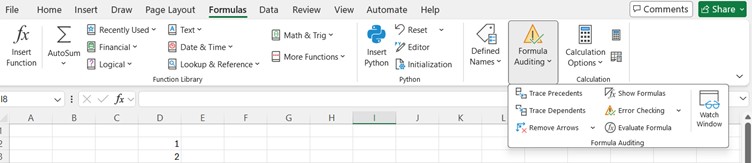
Using the Ribbon
This feature can also be accessed from Excel Formulas Ribbon.
Summary
Excel has hundreds of features, This keyboard shortcut Ctrl + ` is one of those short cuts that dramatically improves productivity, accuracy, and confidence when working with formulas.
Published By: IT Training Solutions Ltd